RoxKit Watch App — Product Features Guide
Version: 2.6.2 (App Store Release)
Last Updated: October 2026
Platform: watchOS (Apple Watch Series 4+ / Apple Watch Ultra)
Companion App Required: RoxKit for iOS
Full functionality requires both the RoxKit iOS app and the Apple Watch companion app.
Heart rate data, live station timing, custom routine guidance, and workout auto-logging all depend on the watchOS app running during your training session or race.
Table of Contents
How the iOS ↔ watchOS Relationship Works
| Watch does | iOS receives |
|---|---|
| Records live HR throughout the workout | Full HR timeline on the Workout Detail page |
| Tracks split time for each station and run segment | Stage Duration Splits with per-split average HR |
Long-press to select alternative exercises (e.g. SkiErg: Echo Bike) | Substituted exercise names preserved in splits; volume attributes to parent station on Dashboard |
| Receives customized station alternatives from iPhone/Web | Automatically updates alternatives list on watch via WCSession |
| Receives planned routines & favorite workouts pushed from iOS/PWA | Displays in Custom Workout picker on watch via 3-channel WCSession sync |
| Runs Ghost Pacer against historical split times of a favorited workout | Saves new completed session with full split comparison |
| Calculates Suffer Score via heart rate zones | Suffer Score card on the Dashboard |
| Saves the HealthKit workout session | Workout appears in Apple Health and RoxKit Workouts list |
| Stores station-by-station splits | Station Split cards on the Dashboard weekly view |
Note: The watch app does not require an internet connection during your workout. All data is written to Apple Health first and synced to the RoxKit dashboard when your iPhone is in Bluetooth range. Custom station alternatives, planned routines, and favorite workouts configured on your iPhone/Web sync automatically to the watch via 3-channel
WCSessiondelivery (sendMessage,updateApplicationContext, andtransferUserInfo).
1. Main Menu
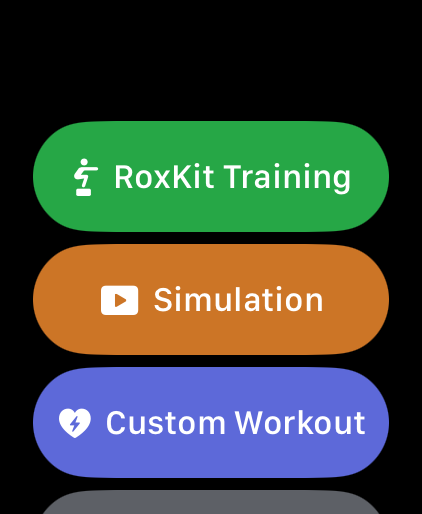
The Main Menu is the first screen you see when you open RoxKit on your Apple Watch. It presents four large, clearly labelled buttons optimised for use with sweaty hands and race-day adrenaline.
Buttons
| Button | Colour | Action |
|---|---|---|
| Hyrox Training | 🟢 Green | Opens the Station Picker so you can select which exercise to track in any order |
| HighRox Sim | 🟠 Orange | Starts a simulated full Hyrox race, auto-advancing through all 16 official segments |
| Custom Workout | 🟣 Purple | Opens the Custom Workout Picker listing your synced Planned Routines and Favorite Workouts |
| Goals & Settings | ⚫ Gray | Opens the Goals & Settings screen to configure station targets, HR alarms, and view preferences |
Hyrox Training
Tap Hyrox Training to enter a live workout where you control which station you're on. This mode is designed for:
- Training individual stations in isolation
- Race day when you want to manually tap through each segment
- Athletes who don't follow the standard Hyrox station order
HighRox Sim
Tap HighRox Sim to launch a fully auto-sequenced Hyrox race simulation. The watch follows the official Hyrox event order automatically:
Run 1 → SkiErg → Run 2 → Sled Push → Run 3 → Sled Pull → Run 4 → Burpee Broad Jumps → Run 5 → Rowing → Run 6 → Farmer's Carry → Run 7 → Sandbag Lunges → Run 8 → Wall Balls
In HighRox Sim mode, double-tapping the screen advances to the next segment — no manual station selection needed. This mode is ideal for actual race day.
Custom Workout
Tap Custom Workout to select any multi-stage routine built in the Web/iOS Plan Routine Split Builder or any historical session starred as a Favorite Workout. See Section 9 for full details.
Goals & Settings
Tap Goals & Settings to configure station time targets, heart rate alarms, lactate threshold, and the station picker layout. See Section 8 for full details.
2. Station Picker & Alternatives
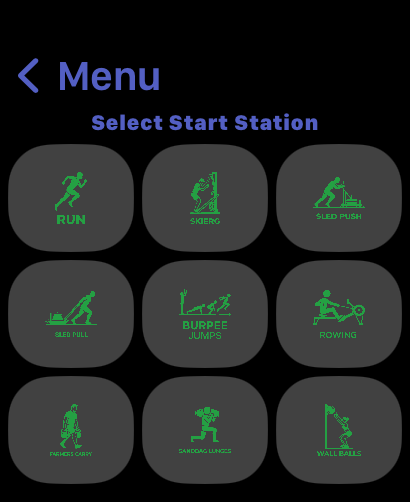
After tapping Hyrox Training, the Station Picker lets you choose which exercise to begin tracking. It displays all 9 trackable activities — Run plus all 8 Hyrox stations.
Grid View
All stations are shown in a scrollable 2-column grid. Tap any station icon to immediately begin that segment's timer and heart rate tracking, or long-press to choose an equipment alternative.
Swipe View
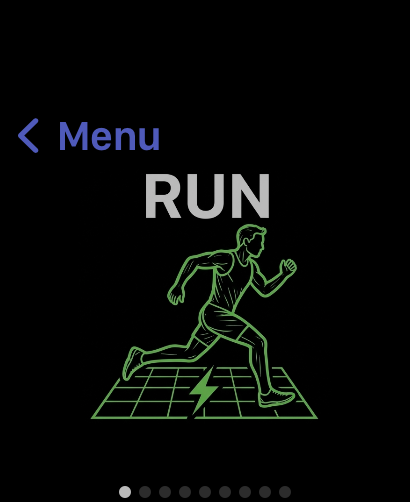
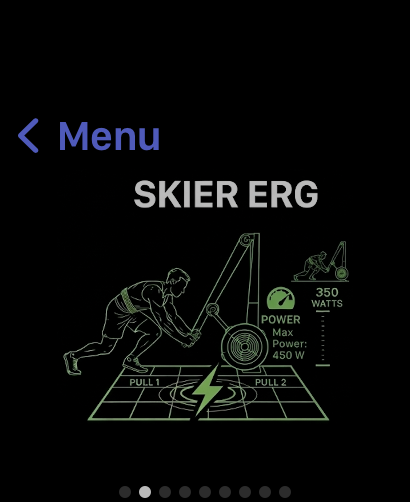
When Swipe View is enabled in Settings, stations are displayed one per screen in the official Hyrox race order. Swipe horizontally to browse, then double-tap to select and start tracking.
The RoxZone timer remains visible at the top of the screen while you browse — ensuring your recovery time between stations is always counted.
Station Tiles (Swipe View)
Each station has a dedicated full-screen tile showing its name and icon. Swipe through the tiles in race order:
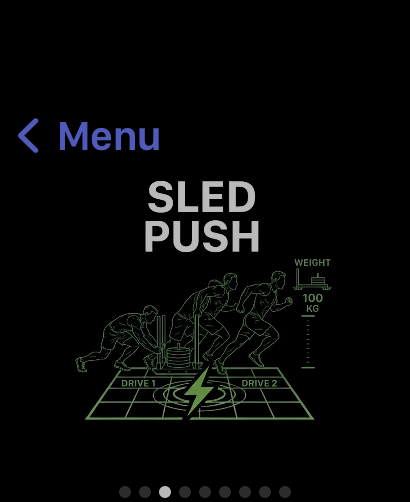
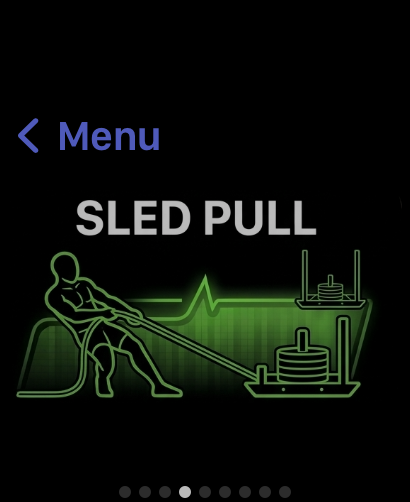
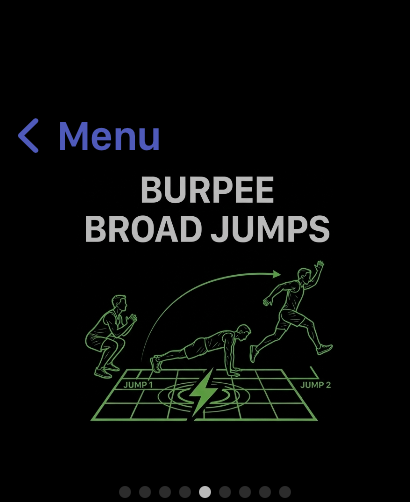
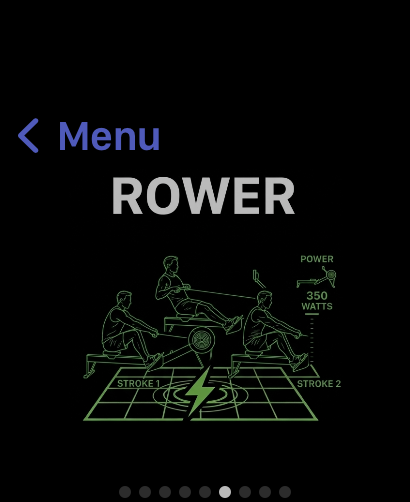
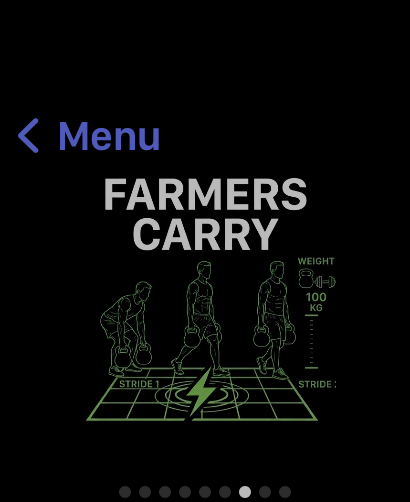
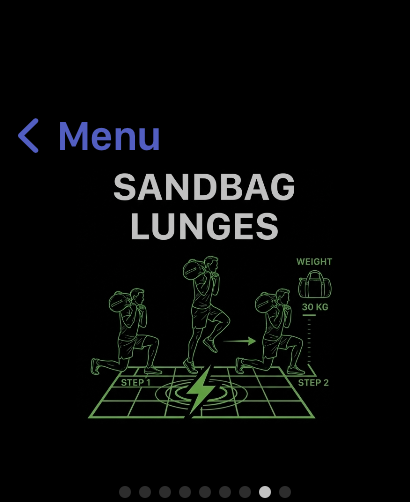
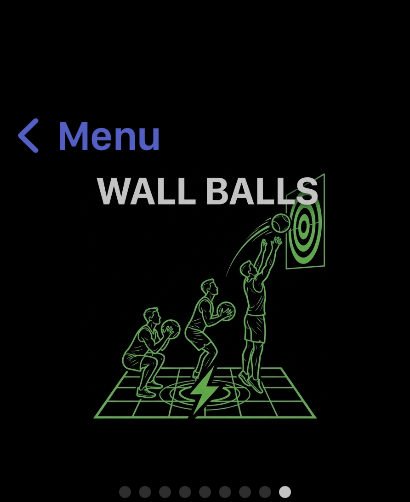
| Station | Standard Distance / Reps | Selection |
|---|---|---|
| Run | 1 km | Tap (Grid) or double-tap (Swipe) |
| SkiErg | 1,000 m | Tap (Grid) or double-tap (Swipe) |
| Sled Push | 50 m | Tap (Grid) or double-tap (Swipe) |
| Sled Pull | 50 m | Tap (Grid) or double-tap (Swipe) |
| Burpee Broad Jumps | 80 reps | Tap (Grid) or double-tap (Swipe) |
| Rowing | 1,000 m | Tap (Grid) or double-tap (Swipe) |
| Farmer's Carry | 200 m | Tap (Grid) or double-tap (Swipe) |
| Sandbag Lunges | 100 m | Tap (Grid) or double-tap (Swipe) |
| Wall Balls | 100 reps | Tap (Grid) or double-tap (Swipe) |
Station Alternatives & Substitutions (Long-Press Gesture)
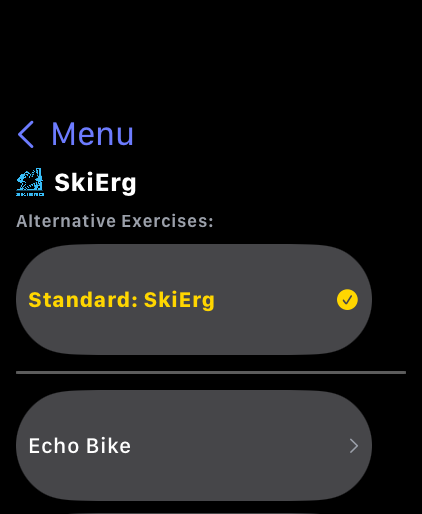
Athletes preparing for Hyrox frequently train with equipment alternatives (such as an Echo Bike or Assault Bike instead of SkiErg, a Heavy Leg Press instead of Sled Push, or Devil Presses instead of Burpee Broad Jumps). RoxKit brings this exact flexibility to your wrist with an intuitive long-press gesture.
How It Works:
- Double-Tap vs. Long-Press:
- Double-Tap: Starts or transitions immediately to the standard primary station (e.g., standard SkiErg).
- Long-Press (0.5s): Press and hold anywhere on the station card. You will feel a distinct haptic click as the Station Alternatives Sheet slides up.
- The Alternatives Sheet:
- Standard Option (Top): The official standard race exercise is pinned at the top with an active checkmark.
- Custom Alternatives: Below the standard exercise, the sheet displays the full list of alternatives configured for that station.
- One-Tap Start: Tap any alternative to immediately start that interval timer and biometric tracking.
- Mid-Workout Transition: If you are already mid-workout, long-pressing any station card from the station selector immediately transitions your active interval to the selected substitute.
- Cloud & Phone Sync: The list of alternatives is fully customizable in the RoxKit Web & iOS Settings, and syncs automatically to your Apple Watch in real time via WatchConnectivity.
3. Active Workout HUD
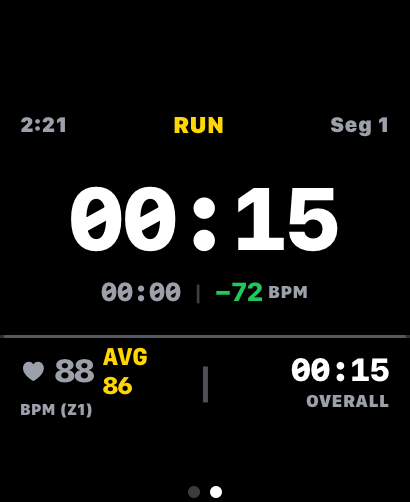
The Active Workout screen is the primary display during a race or training session. It shows all critical metrics at a glance, updated in real time from Apple Watch sensors.
Live Metrics
| Metric | Location | Description |
|---|---|---|
| Exercise Name | Top centre (yellow) | Current station or run segment (e.g. "RUN", "Sled Push") |
| Segment Number | Top right | Current position in the sequence (e.g. "Seg 1") |
| Split Timer | Centre — large | Elapsed time for the current segment only |
| Goal Pace | Below split timer | Time offset vs. your goal for this station |
| Live Heart Rate | Bottom left | Current BPM with heart rate zone label (e.g. "88 BPM (Z1)") |
| Avg Heart Rate | Bottom left (yellow) | Running average HR for this segment |
| Overall Time | Bottom right | Total elapsed workout time since the first station |
Heart Rate Zone Label
The live HR display shows your current zone in brackets (e.g. Z1, Z2, Z3) based on your configured heart rate zones. This updates in real time as your effort increases.
Heart Rate Colouring
| Colour | Meaning |
|---|---|
| White | Below threshold — aerobic effort |
| Orange | At or above threshold — anaerobic effort |
| Red + Haptic pulse | HR alarm triggered (if enabled in Settings) |
Tip: Swipe left from this screen at any time to access the Workout Controls panel (pause, resume, back, end).
Active Workout HUD with Substituted Exercise
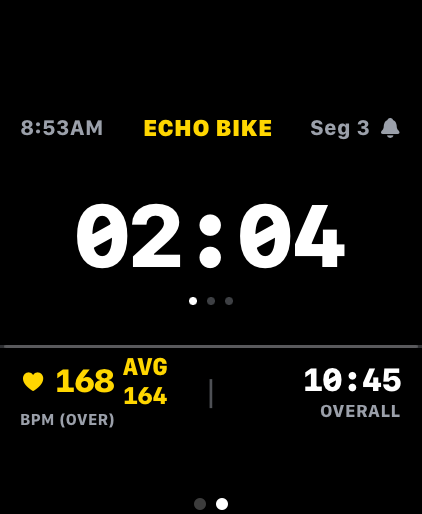
When an alternative exercise is selected, the active performance HUD dynamically reflects your substituted movement:
- Station Header: The top header displays the specific substitute name (e.g., ECHO BIKE) highlighted in the station's authentic theme accent color.
- Biometric Tracking: Heart rate target zones, average heart rate, and split elapsed stopwatch function with zero latency.
- Compound HealthKit Logging: The workout split is saved to Apple HealthKit with compound naming (
SkiErg: Echo Bike). When synced back to your iPhone and the Web Dashboard, your weekly volume automatically credits to the parent station while keeping the exact alternative in your session detail log! - State Recovery: The active alternative name is saved to flash memory on the watch. If the screen goes to sleep, wrist drops, or watchOS backgrounds the app, your active alternative is fully restored upon wake.
4. Workout Controls
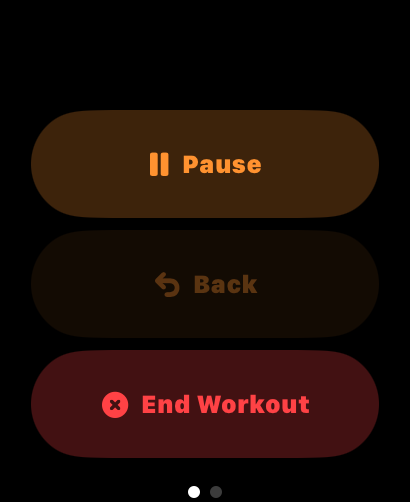
Swipe left on the Active Workout screen to access the Workout Controls panel.
Controls
| Button | Style | Action |
|---|---|---|
| Pause | Dark brown, orange text | Pauses the split timer and overall timer; HR monitoring continues |
| Back | Dimmed — only active mid-session | Returns to the previous station and reverts the last segment completion |
| End Workout | Red, orange text | Ends the session, saves to HealthKit, and shows the Final Summary |
Tip: Pausing the workout does not stop HealthKit from recording — your full HR timeline is preserved even during paused intervals. Tap Pause again to resume.
5. RoxZone Transition
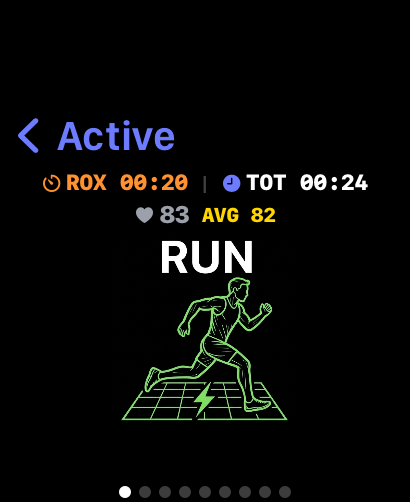
The RoxZone is the corridor run between each Hyrox station. When you complete a station, this screen appears automatically to mark the changeover and keep your between-station time accurately recorded.
What It Shows
| Element | Location | Description |
|---|---|---|
| ROX Timer | Top left (orange) | RoxZone elapsed time — counts up from 0:00 the moment you leave the station |
| TOT Timer | Top right (blue) | Total workout time — full elapsed time since your first station |
| Live Heart Rate | Below timers | Current BPM during the transition run |
| Avg Heart Rate | Below timers (yellow) | Running average HR for the transition |
| Next Station Name | Centre — large white text | The upcoming exercise you are running towards |
| Station Illustration | Centre graphic | Visual representation of the next station |
The ROX timer keeps running in the background even if you swipe away — ensuring your transition time is always captured accurately in the split data.
6. Split Summary
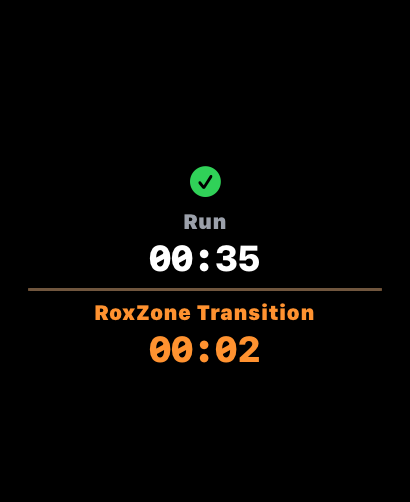
After each segment is marked complete, the Split Summary screen briefly displays that station's result — and simultaneously shows the RoxZone Transition timer already counting, so you're never losing track of your between-station time.
What It Shows
| Element | Description |
|---|---|
| ✅ Green Checkmark | Confirms the segment was successfully completed and saved |
| Exercise Name | The station or run just completed (e.g. "Run") |
| Split Time | Total elapsed time for that segment (white, large) |
| RoxZone Transition | Label in orange — marks the start of your corridor run to the next station |
| RoxZone Timer | Time already elapsed in the transition (orange) — begins counting the moment the split ends |
The RoxZone timer starts immediately when a split ends, ensuring no transition time is lost between reading your split and moving to the next station.
7. Final Summary
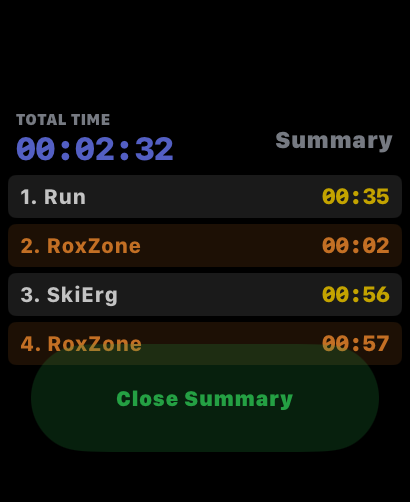
The Final Summary appears automatically after your workout ends. It presents your total time and a complete, scrollable split-by-split breakdown of the session before you close out.
What It Shows
| Element | Style | Description |
|---|---|---|
| TOTAL TIME | Blue, large | Full elapsed workout time from first station to end |
| Station splits | White text, yellow time | Each completed Hyrox station with its split time |
| RoxZone splits | Orange text, yellow time | Each corridor transition run with its elapsed time |
| Close Summary | Green button | Dismisses the summary and completes the HealthKit save |
The split list is scrollable — swipe up to see all segments from the full session. Every split is automatically synced to the RoxKit iOS app the next time your iPhone is in Bluetooth range.
8. Goals & Settings
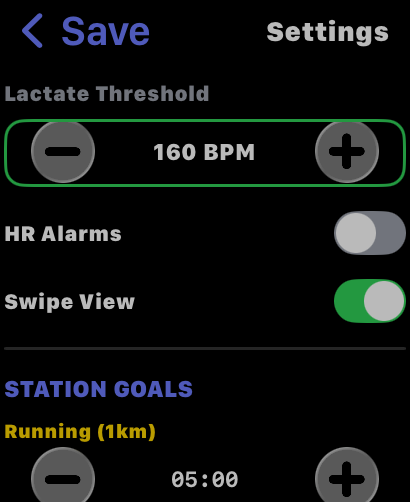
The Settings screen lets you configure personal targets and preferences that apply across all workout modes. Access it by tapping Goals & Settings from the Main Menu.
Lactate Threshold
A +/− stepper control (highlighted with a green border) sets your personal lactate threshold heart rate in BPM. During a workout, the live HR display turns orange when you're at or above this value — giving you a real-time anaerobic zone indicator.
HR Alarms
Toggle haptic heart rate alerts on or off. When enabled, the watch delivers a series of haptic taps if your HR exceeds your configured alarm threshold — no need to look at the screen.
Non-Medical Disclaimer: RoxKit heart rate alarms and zone alerts are designed solely for athletic pacing and fitness training. RoxKit is not a medical device and is not intended to diagnose, monitor, or treat any heart condition. Always seek a doctor's advice in addition to using this app and before making any medical decisions.
Swipe View
| Setting | Behaviour |
|---|---|
| Off | Grid View — all stations visible on one scrollable screen |
| On (green) | Swipe View — one station per screen in official Hyrox race order; double-tap to select |
Station Goals
The STATION GOALS section (scrollable) contains a +/− stepper for each of the 9 trackable activities. These goal times power the progress ring and goal pace display on the Active Workout screen.
| Station | Default Goal |
|---|---|
| Running (1km) | 5:00 |
| SkiErg | 5:00 |
| Sled Push | 4:00 |
| Sled Pull | 4:00 |
| Burpee Broad Jumps | 4:00 |
| Rowing | 5:00 |
| Farmer's Carry | 3:00 |
| Sandbag Lunges | 4:00 |
| Wall Balls | 4:00 |
Tap Save (top left) to commit your changes and return to the Main Menu.
Station Alternatives & Cloud Synchronization
You can customize the alternative exercises available for each station on your iPhone or via the Web App under Settings > Station Alternatives & Substitutions. Any additions, removals, or default resets are pushed immediately to your Apple Watch over Bluetooth via WCSession.
Default Pre-Configured Race Alternatives:
| Station | Default Pre-Loaded Alternatives |
|---|---|
| Run | Outdoor Run, Treadmill Run, Assault Runner, 800m Intervals, Track Repeats |
| SkiErg | Echo Bike, Assault Bike, Lat Pulldowns, DB Skiers, Concept2 Rower |
| Sled Push | Heavy Leg Press, Plate Push, Hill Sprints, Heavy Sled Drag, Treadmill Push |
| Sled Pull | Seated Cable Rows, Hand-over-Hand Rope Pull, Trap Bar Deadlifts, Kettlebell Deadlifts |
| Burpee Broad Jumps | Devil Press, Bar-Facing Burpees, Burpee Box Jump Overs, Target Burpees |
| Rowing | Concept2 Row, Echo Bike, SkiErg, Assault Bike, 500m Intervals |
| Farmer's Carry | Trap Bar Carry, Heavy Dumbbell Carry, Overhead Carry, Kettlebell March |
| Sandbag Lunges | Dumbbell Walking Lunges, Barbell Lunges, Bulgarian Split Squats, Weighted Step-Ups |
| Wall Balls | Thrusters, Dumbbell Thrusters, Medicine Ball Slams, Air Squats + Push Press |
9. Custom Workout Picker & Favorite Ghost Pacer Replay
Custom Workout Picker
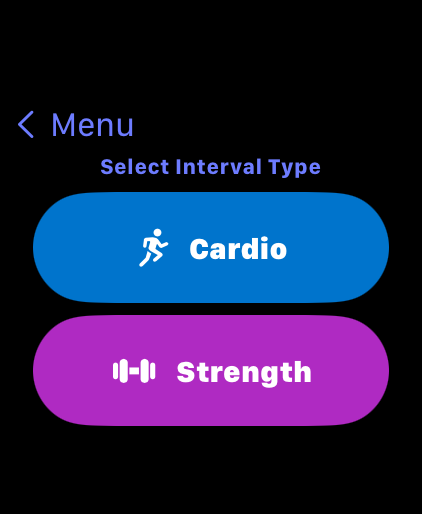
Tapping Custom Workout (purple button) from the Main Menu opens the Custom Workout Picker, which gives you immediate wrist access to two categories of personalized sessions synced from your iPhone or Web Dashboard:
- PLANNED ROUTINES (Purple Section):
- Lists every custom multi-stage workout built in the Plan Routine Split Builder or generated by the AI Workout Planner and pushed to your watch.
- Shows the routine name, stage count, and total target duration.
- Tapping a planned routine launches an auto-sequenced guided session on your wrist that steps through your exact custom stages, target distances/reps, and target stage paces.
- FAVORITE WORKOUTS (Gold Star Section):
- Lists any completed historical workout that you starred (
★) on the Dashboard or Workouts page. - Displays the session title, stage count, and historical total time.
- Tapping a favorite workout launches Favorite Ghost Pacer Replay mode.
- Lists any completed historical workout that you starred (
Favorite Ghost Pacer Replay HUD
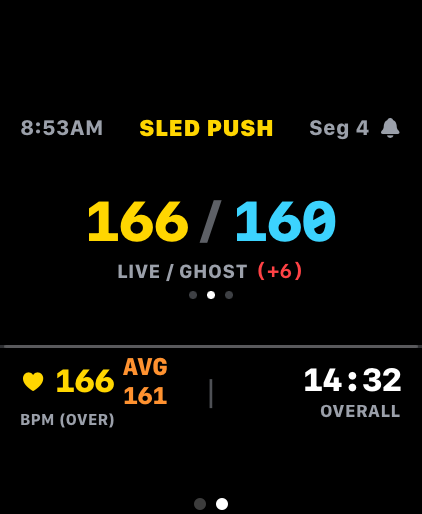
When you select a Favorite Workout from the Custom Workout Picker, RoxKit turns your past performance into a live Ghost Pacer on your wrist:
- Historical Stage Targets: Every stage's target time is automatically populated from the exact split duration you recorded in that historical session.
- Live Ghost Delta Ring & Pace Indicator: As you move through each Run and Station, the progress ring and goal pace display show how many seconds ahead or behind your historical ghost split you are in real time.
- Double-Tap Stage Progression: Double-tap the watch screen to complete the current split, record your new time, and advance to the next stage in your historical sequence.
- Full HealthKit & Split Logging: When finished, the replay session is saved as a brand-new HealthKit workout with full heart rate telemetry and stage splits so you can compare your new performance side-by-side against your previous benchmark on the iPhone/Web Dashboard.